How to get answers you can trust from your own documents
Asking an AI model about a document you just attached feels like magic the first time. The second time, you notice the answer quoted a clause that isn't there, or summarised the wrong quarter. The model didn't get worse — the question was just too open.
You can now attach files to any chat on CatchCase: PDFs, Word documents, spreadsheets exported as CSV, code, plain text and screenshots. Here is how we use it ourselves.
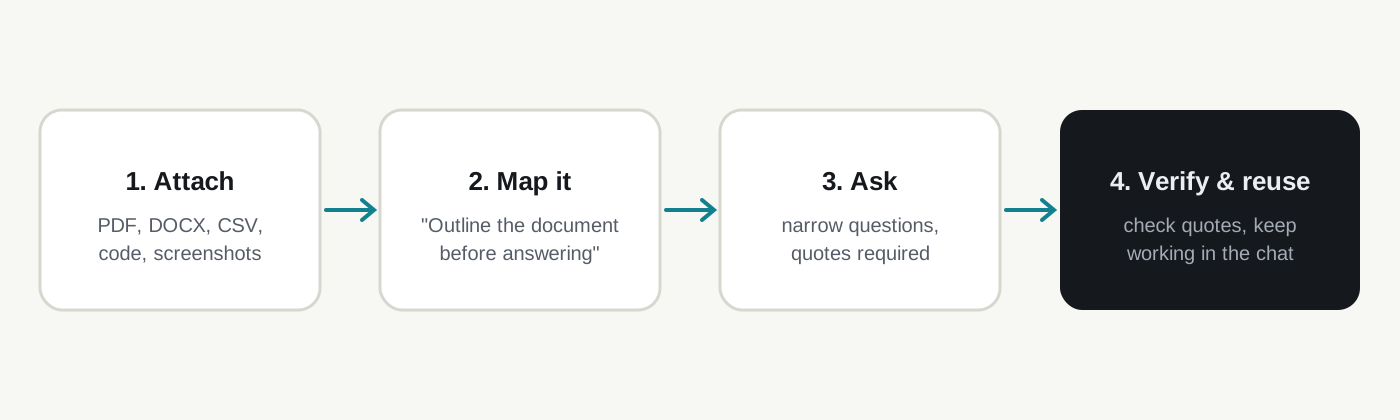
1. Ask for a map before you ask for answers
The first message after attaching a file should not be your real question. Ask the model to describe the document first:
Before we start: give me a short outline of this document — its sections, what each one covers, and any tables or appendices.
This costs a few seconds and pays off twice. You immediately see whether the file was read correctly (a scanned PDF without a text layer, for example, will come back nearly empty). And the outline stays in the conversation, so every later answer is anchored to the structure the model already laid out.
2. Make quotes part of the answer
The single most effective habit: require the model to back every claim with a short quote from the file.
For each point, include the exact sentence from the document that supports it, in quotation marks. If the document doesn't say it, write "not in the document".
Two things happen. Hallucinated details drop sharply, because the model now has to produce text that can be checked. And checking becomes trivial for you: search the document for the quote and you're done. "Not in the document" is a perfectly good answer — often it's exactly what you needed to know.
3. Narrow questions beat big ones
"What are the risks in this contract?" invites a generic list about contracts in general. Compare:
- "Which clauses let the supplier change the price, and under what conditions?"
- "List every date or deadline in this document with what happens on it."
- "Does anything here limit our liability? Quote it."
Specific questions force the model to look for specific passages. If you don't know which questions to ask yet, ask for them: "What ten questions would a careful lawyer ask about this document?" — then work through the list one by one in the same chat.
4. Numbers: let it compute, then check the inputs
For spreadsheets and CSV exports, the model is good at spotting patterns and bad at silent arithmetic over hundreds of rows. Ask it to show its working:
Group the rows by region and give the total revenue per region. Show which rows you included for the largest region.
When the totals matter, ask for the calculation as a formula or a short script you can run yourself. A chat is a great place to figure out what to calculate; your spreadsheet is still the place to calculate it.
5. Keep working in the same conversation
The file stays attached to the chat. That means the follow-ups are where the real value is:
- "Draft a reply to the supplier asking about clauses 4.2 and 7.1."
- "Make it shorter and less formal."
- "Now write the same points as a checklist for our team."
Each step builds on the document and on everything you've already agreed with the model. Starting a new chat for each step throws that context away — and you pay to re-read the file every time.
What files work best
| Works well | Works poorly |
|---|---|
| Text PDFs, Word documents, Markdown | Scanned PDFs without a text layer — attach page screenshots instead |
| CSV and TSV exports | Huge spreadsheets — export only the columns you need |
| Code files, logs, JSON | Password-protected files |
| Screenshots and photos of whiteboards | Very long documents: we keep the first ~150,000 characters and tell the model the file was cut |
About cost
Chats are billed by actual usage: a short question about a two-page memo costs a fraction of what a long back-and-forth over a 100-page report does, because the model re-reads the conversation each turn. You can see what every reply cost on your credits page.
Want a head start? Many cases in the library already accept files — open one, attach your document and press Run.